Welcome to the SpaceCats

Hey there, I’m Hecka, and I’ll be your guide today!

There are several things we’ll need to make sure you have set up, in order to upload your own avatar. For the sake of completeness, I’m including EVERY step of the way as if you’ve never done this before. This page should be easy enough to skip around to the important bits if you know what you’re doing.

We’ll begin by downloading VRChat Creator Companion. This is the official supported tool, which I’ll be using through this installation. An alternative installer recommended by the community is Alcom.

Please go through the general install instructions provided by VRC CC. It will lead you through installing the unity hub and relevant version of Unity for our project.

Now that we have VRC CC set up, we’re going to 1: create the file, and 2: install some dependencies. Under the main Projects tab, click ‘Create New Project’. Simple! Then, Select the ‘Unity 2022 Avatar Project’ option, name your project, and set the location somewhere you’ll remember.

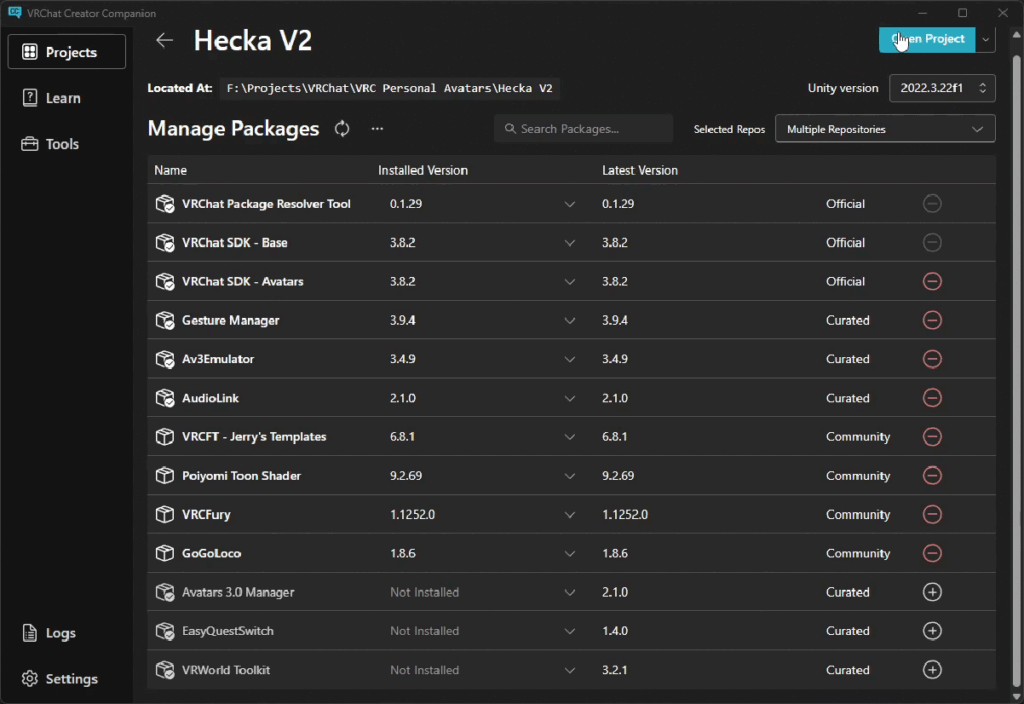
This will take a few minutes to complete. Once it’s done, don’t open the file yet! We’ll now want to click ‘Manage Project’. One by one, we’re going to click the (+) icons on the right, to install each of the following entries:

  • VRChat SDK – this installs on its own, but please ensure it’s updated to 3.8.2 (or newer), as CC’s template may be out of date.
  • VRCFurythis is mandatory. If you haven’t added it to your Creator Companion, follow the instructions
  • Poiyomi – This is the default shader I use on the model. You don’t need the ‘pro’ version, free is fine
  • AV3Emulator – this allows testing of your model in play mode. Gesture Manager is an alternative option but not set up in the example files.

Optional, but nice:

  • GogoLoco – This installs a suite of extra animations and utilities, that are helpful for users without fullbody tracking.
  • Jerry’s Face Tracking Templates – You should install this to your file before installing the vix to it for the first time, if you intend on using facetracking
  • AudioLink (added alongside VRCFury) – This adds extra lighting features that react to music in compatible worlds.

Adding each of these will take several minutes a piece. One reason Alcom was recommended as an alternative is that it can do this all at once, instead of performing it one at a time. I don’t have experience with it, but that sounds nice!

Once you’re ready, click ‘Open Project’. This will take quite some time for the first time it opens up.
VRC Creator Companion Dependencies for the Vixine
Above: your project should probably look like this before opening it.

In Unity

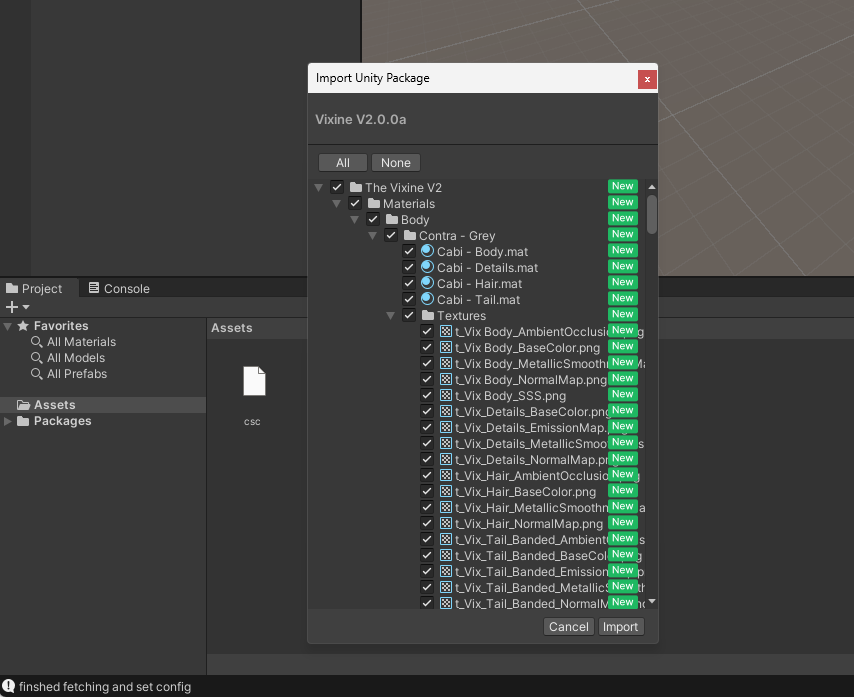
Once your unity project is open, you’ll find it’s a blank slate. Ensure you’ve downloaded the latest Vixine 2.x.x.unitypackage, and drag it into the ‘Project’ drawer. It will take some time to read the file before giving you an import prompt, pictured to the left. Once it pops up the list, simply click Import. This will take some time.

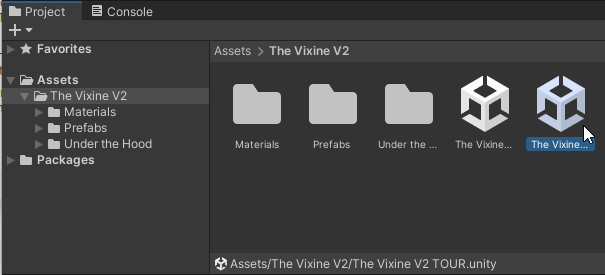
Once it is done importing, you will now have some folders available. In “The Vixine V2”, you’ll find two unity scenes- one marked “Starter File” and one marked “Tour”. Please open the “Tour” file first.

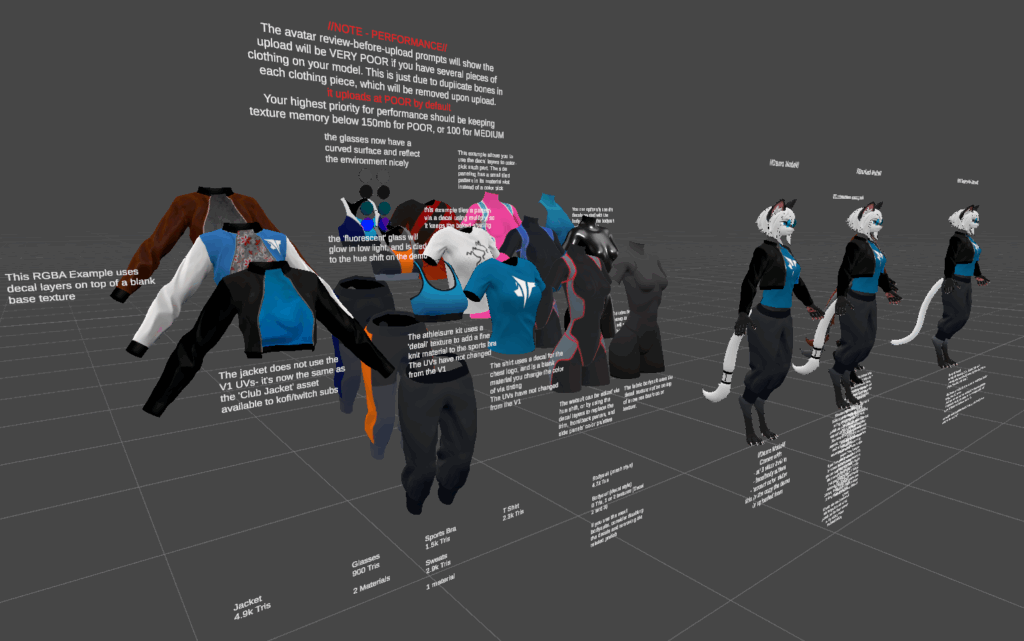
This scene shows you what’s included in the base files, gives examples of customizations to the mesh, gives recommendations on optimization, and shows the different variants available-

  • ‘Demo’ with all the body/color adjustment sliders seen on the public
  • ‘Standard’ with that content removed in favor of manually adjusting
  • ‘V1 UVs+Tail’ is a setup allowing for existing textures to be used on the mesh

Each of these comes in several flavors:

  • the normal variation, which has ‘Vix Default Locomotion’ enabled for a simple set of standard standing/crouching/prone animations, and a mix of hand gesture controls and 2D puppets installed for controlling the face.
  • ‘GogoLoco’, includes a slightly modified version of the GGLC prefab, in place of ‘Vix Default Locomotion’. This eats more params but is helpful for users without fullbody tracking.
  • ‘Face Tracking’, which opts for Vix Default Locomotion and leaves off the other face controls, in favor of Jerry’s Face Tracking template.

Once you have a solid grasp of what you can do, let’s move on to the ‘Starter’ file. Select it, and press CTRL+D to duplicate it. Rename the duplicate to something unique, then open it. This way, if you update your vix files, the scene won’t accidentally get overwritten by the default setup.

[The rest of this page is under construction. Been a busy week! For most of you, I presume you know what to do from here. Adjust blendshapes, drag and drop new materials onto the body and clothing, remove clothing you don’t need. There will be more instruction to follow that may still be relevant to you, but for now, good luck!]

Development

Quick Guide for Asset Creators

Automating Clothing Swapsusing VRCFury's Exclusive Tags

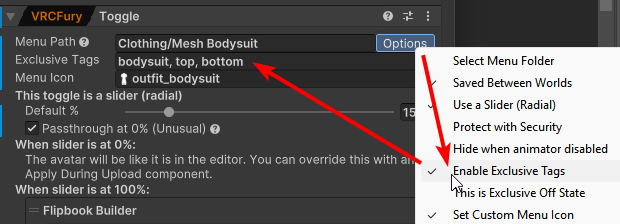
The avatar’s default clothing is, by default, set up with VRCF’s Exclusive Tags. This makes it so if you, for instance, are wearing the sports bra and want to turn on a bikini top, It swaps them because they both have the tag top, instead of allowing both to be turned on simultaneously. It’s convenient, and in rare cases necessary for the avatar’s underlying automations.

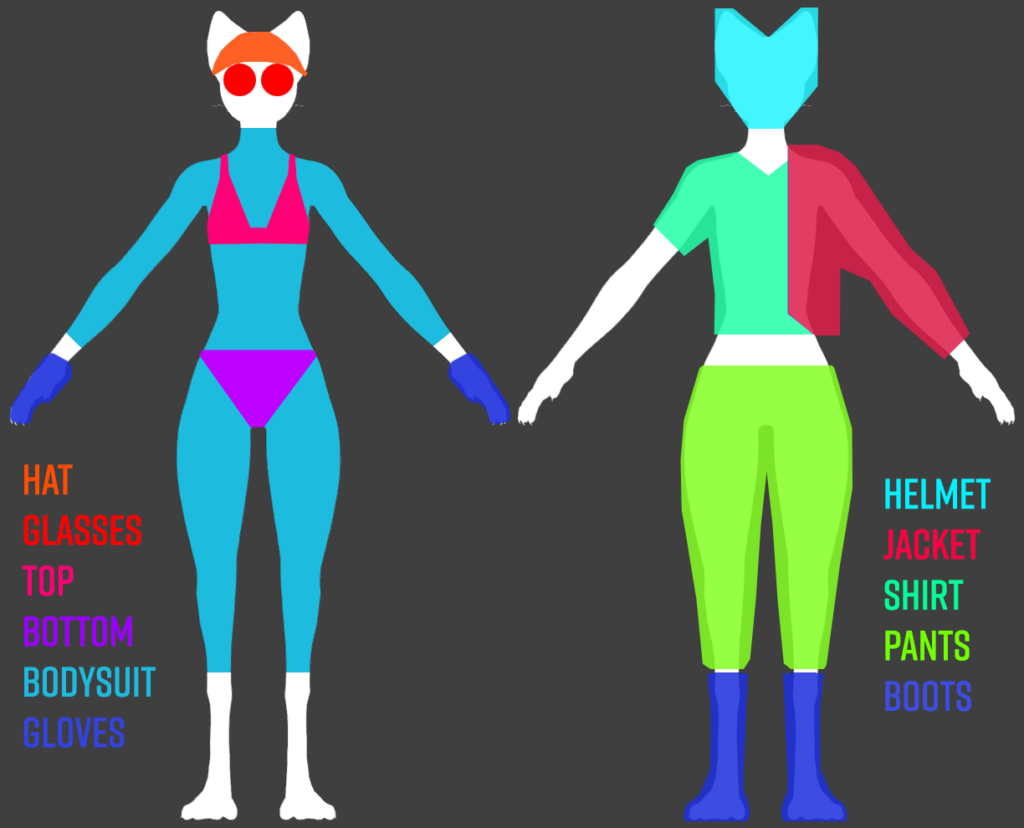
EXCLUSIVE TAGS ARE ALL WRITTEN IN LOWER CASE, separated by commas. Beyond that, use your best judgement for when a conflict arises- skintight clothing would want to consider bodysuit, top, bottom. Helmets would likely want to tag helmet, hat, glasses. A jacket will likely fit over a shirt without a shirt tag, but a baggy shirt or sweater may want jacket.